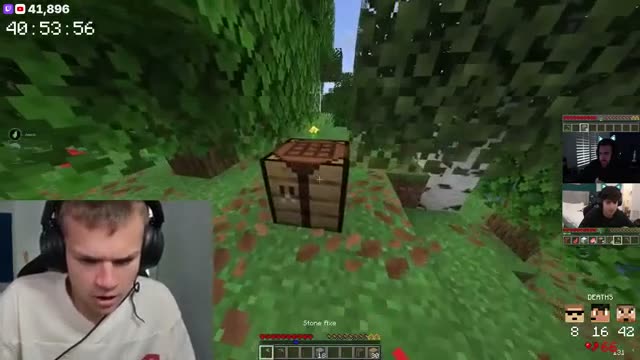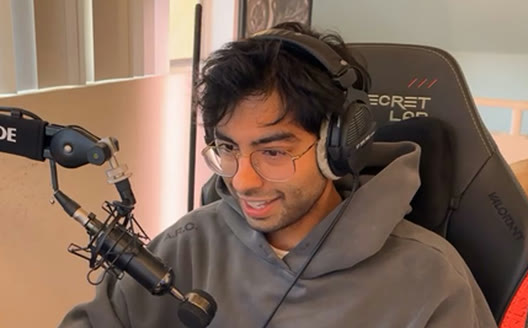
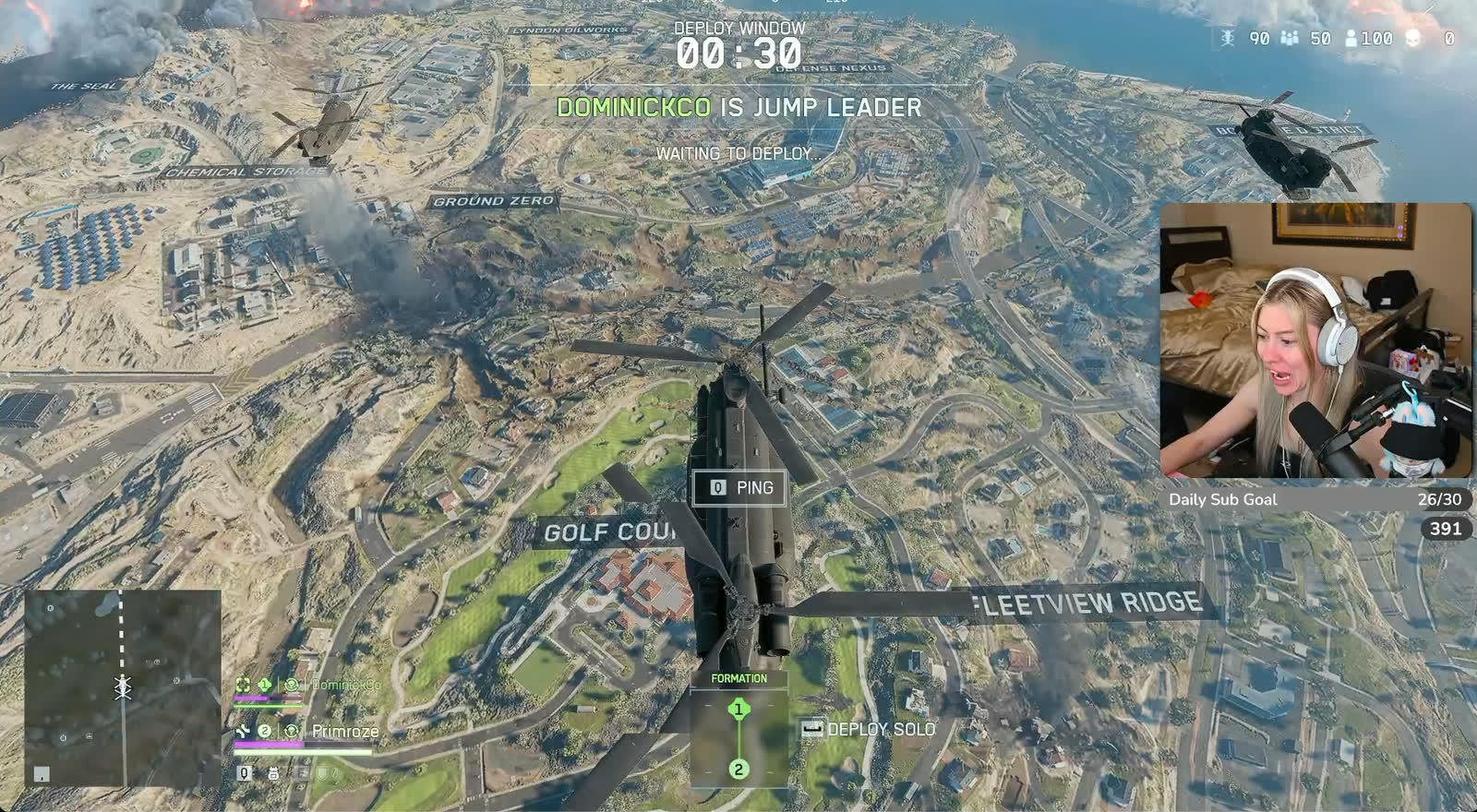
Live clipping
TL;DR clips your stream while it's on. Say "clip that" to grab one yourself.
Turn it on once. The first clip from your stream goes straight to your socials with a LIVE badge, so people can join while you're on.
Start free
“The ability to quickly clip, save, edit and manage my clips on the TL:DR Dashboard has been insanely helpful for my productivity.
“AI clips the important moments when you’re in the zone, and saying “TL;DR, clip that!” catches the hype moments you want to relive.”
“TL;DR has made life so much easier. Letting my viewers just scroll down click a button and be brought up to speed is 10/10 would recommend.”

"TL;DR is the like the viewer that never sleeps. Always there to clip the most epic moments!”
Pick a webcam frame: square, rectangle, rounded or circle. Then pick a layout: your webcam above the game, or set over it on the right or the left.
The preview changes as you go, so you see the post before it goes out.
The post carries one line in big type, under your Twitch or Kick logo. Keep the default, Come Join My Livestream, or write your own.
Switch on the LIVE badge and it sits on the post, so people know you're streaming right now.
Connect TikTok, Instagram, YouTube and Facebook once, then switch on the ones you want. On Instagram and Facebook, pick a post, a story or both.
When the first clip of your stream is ready, it goes to all of them at once.
The post goes out while you're streaming, not the next day. It says you're live right now and points people to your Twitch or Kick channel.
That's your first clip. For the rest, use the scheduler.
Most streamers stitch together a clipper, an editor, a scheduler and a spreadsheet. TL;DR is all four, so a clip goes from your stream to your socials without ever leaving.
TL;DR clips your stream while it's on. Say "clip that" to grab one yourself.
Captions, vertical reframe, your layouts and assets. Edit in the browser, export in 1080p.
Post now or queue a week of clips to TikTok, Instagram, YouTube, X, Facebook and Threads.
Views, likes, shares and engagement per post, so you know which moments travel.
The first clip TL;DR makes from your stream, as a vertical video in your template: your webcam, the gameplay, your Twitch or Kick logo, your tagline and, if you want it, a LIVE badge.
Right away, while you're still live. As soon as the first clip of the stream is ready, it goes out.
TikTok, Instagram, YouTube and Facebook. Connect each account once and switch on the ones you want. On Instagram and Facebook you can post, add a story, or both.
The webcam frame (square, rectangle, rounded or circle), the layout, the tagline, and whether the LIVE badge shows.
No, only the first one from each stream. To post the rest, use the scheduler.
Twitch and Kick. If you stream on both, turn both on and both logos show on the post.