



Live clipping
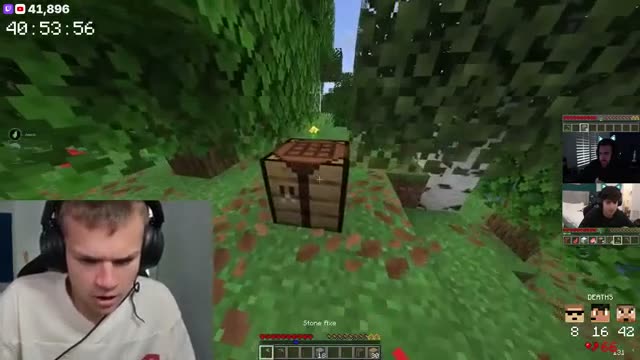
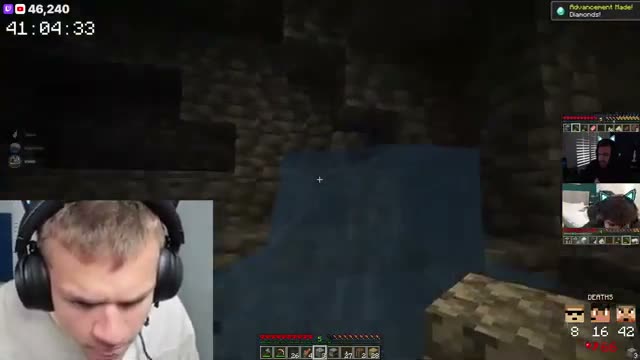
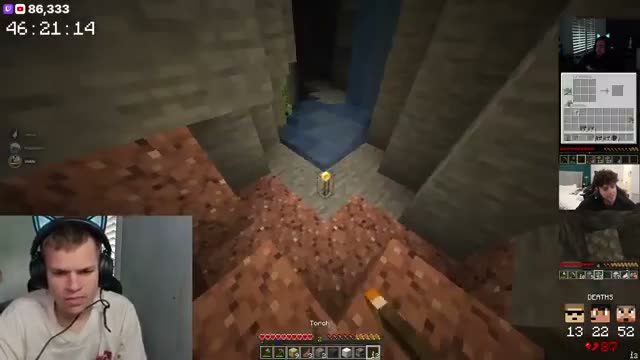
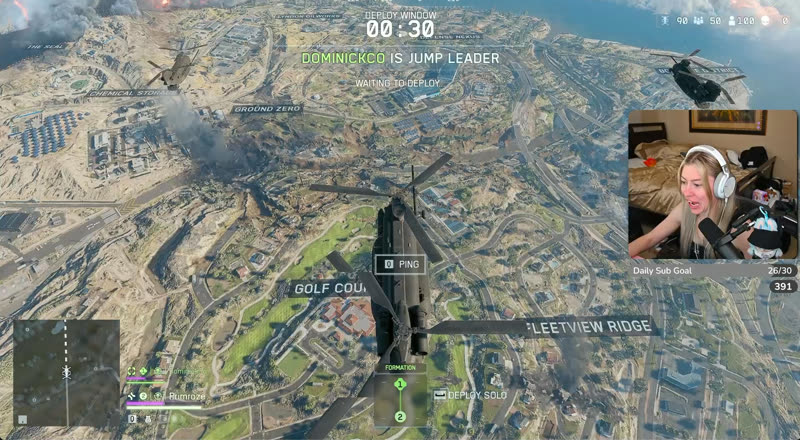
TL;DR clips your stream while it's on. Say "clip that" to grab one yourself.
Trim your clips, add AI captions and set the size for each app. There's nothing to install.
Start free
“The ability to quickly clip, save, edit and manage my clips on the TL:DR Dashboard has been insanely helpful for my productivity.
“AI clips the important moments when you’re in the zone, and saying “TL;DR, clip that!” catches the hype moments you want to relive.”
“TL;DR has made life so much easier. Letting my viewers just scroll down click a button and be brought up to speed is 10/10 would recommend.”

"TL;DR is the like the viewer that never sleeps. Always there to clip the most epic moments!”
Auto Captions listens to your clip and writes the captions for you, word by word. Fix any line in the Edit tab.
Then pick a style. There are ten, and the highlight follows each word as you say it. Seven of them come with Pulse and Peak.

Auto-detect Webcam scans a clip from your TL;DR library, finds your camera and adds it to the timeline as its own layer.
Move it and crop it like any other layer, so your face can sit on top with the game below.

Switch on Reels, Shorts or TikTok to see where that app puts its buttons, captions and username over your video.
Keep your text and stickers in the clear area. The guides only show in the editor, never in your export.
Split a clip at the playhead, drag its ends to trim, and switch between 9:16, 16:9, 1:1 and 4:5 whenever you like.
Pulse and Peak export in 1080p at 60 fps with no watermark. The Free plan exports in 720p.
Most streamers stitch together a clipper, an editor, a scheduler and a spreadsheet. TL;DR is all four, so a clip goes from your stream to your socials without ever leaving.
TL;DR clips your stream while it's on. Say "clip that" to grab one yourself.
Captions, vertical reframe, your layouts and assets. Edit in the browser, export in 1080p.
Post now or queue a week of clips to TikTok, Instagram, YouTube, X, Facebook and Threads.
Views, likes, shares and engagement per post, so you know which moments travel.
No. The editor runs in your browser, so there's nothing to download. Open it from your TL;DR dashboard.
Click Edit Clip on any clip in your TL;DR library and it opens straight in the editor.
9:16 for TikTok, Reels and Shorts, 16:9 for YouTube, 1:1 square and 4:5 portrait. Switch between them at any time from the menu under the preview.
Auto Captions turns the clip's audio into captions, timed word by word. Fix any line in the Edit tab, then pick one of ten styles. Seven of them come with Pulse and Peak.
3 exports a week at 720p and 30 fps, with a small TL;DR watermark after your first export each week. Pulse gives you 50 exports a month and Peak 150, both at 1080p and 60 fps with no watermark.
Yes. Text, Audio, Image, Stickers and Uploads each have a panel in the editor, and everything you add sits on the timeline as its own layer.